When working on a Photoshop project, you’ll need to add pictures to existing layers regularly. Whether you want to merge two photographs or just layer one on top of the other, Photoshop makes it simple.
There are several destructive and non-destructive methods for inserting pictures. This article will show you how to insert image in photoshop on top of the background. One of Adobe Photoshop’s greatest capabilities is the ability to modify a picture’s backdrop.
The software also has features for selecting difficult regions like hair and matching colors from several photos.
How to add a background in Photoshop?
The bottommost picture in the Layers panel when you create a new image with a white or colorful backdrop is called Background. There can only be one background layer in a picture. A background layer’s stacking order, blending mode, or opacity cannot be changed.
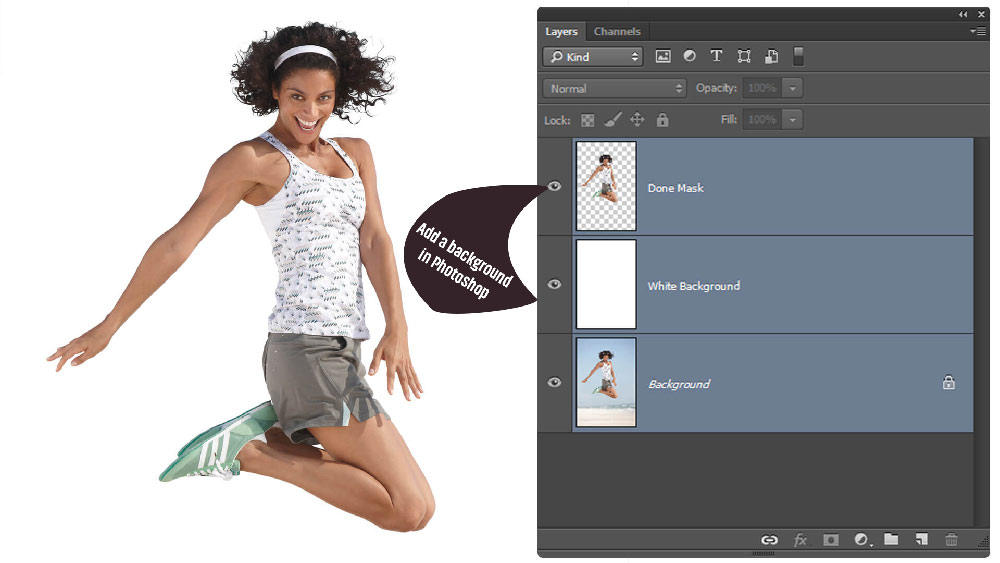
However, you may modify any of these properties after converting a background into a normal layer. The image does not have a backdrop layer when you make a new image with transparent content. The bottommost layer, unlike the background layer, is not restricted; you may move it throughout the Layers panel and modify its opacity and blending mode. You can add background by following the given two ways:
1.To turn a background into a Photoshop layer
In the Layers panel, double-click Background, or go to Layer > New > Layer From Background.
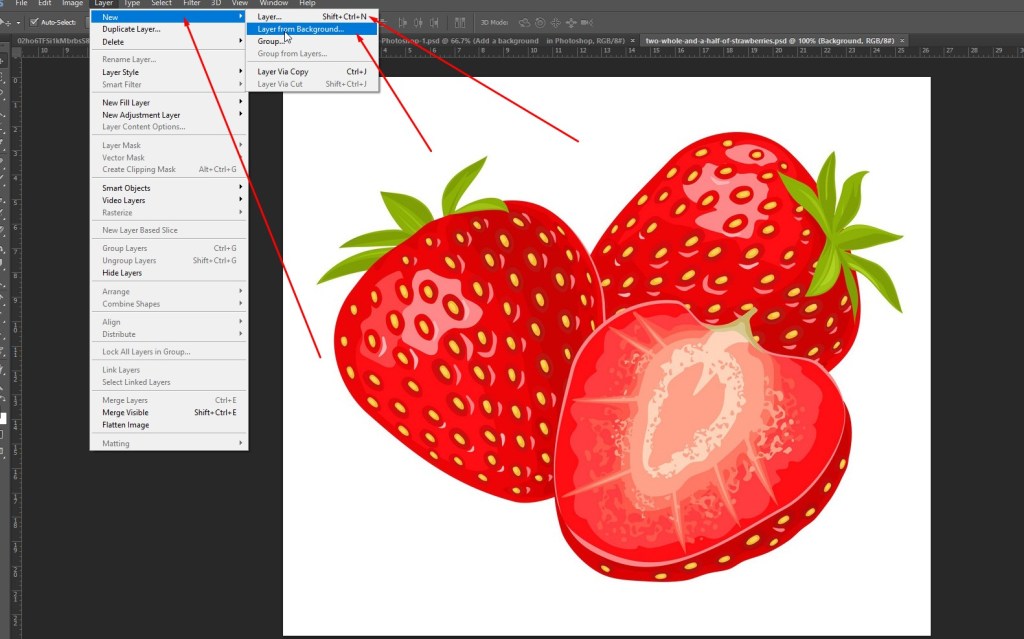
● Configure the layer settings.
● Click the OK button.
2.To make a backdrop out of a Photoshop layer:
● In the Layers window, choose a Photoshop layer.
● Select Layer > New > Background From Layer from the menu bar.
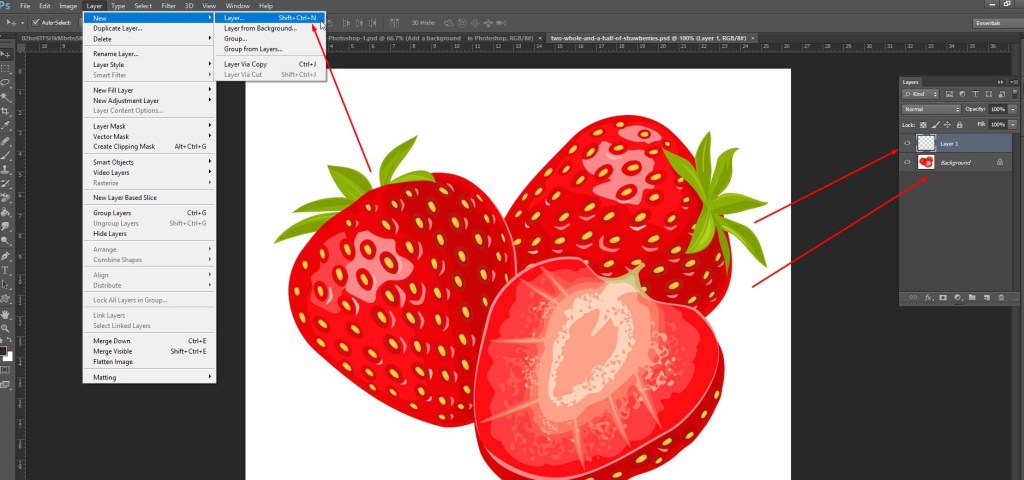
The background color is applied to any transparent background pixels in the layer, and the layer is moved to the bottom of the layer stack. You can’t make a background by naming an ordinary layer Background; instead, you’ll need to utilize the Background From Layer command.
How to insert image in photoshop on top of the background
You may add additional pictures to your project on different levels because Photoshop is a layer-based editing application. Despite the fact that they will display as separate pictures in your layers panel, they will appear to be merged on your canvas.
Keeping your layers distinct allows you to make better individual changes and work without causing any damage. However, there are several methods for how to insert image in photoshop on top of the background by current remove background.
It might be simpler to keep organized or recall what’s what when two layers are combined into one. Because we enjoy choices around here, we’ll show you how to set an image on a backdrop in Photoshop in two different methods.
Method 1: Drag and Drop
Drag & drop a picture from your computer into an existing layer or Photoshop project is the simplest way to do so.
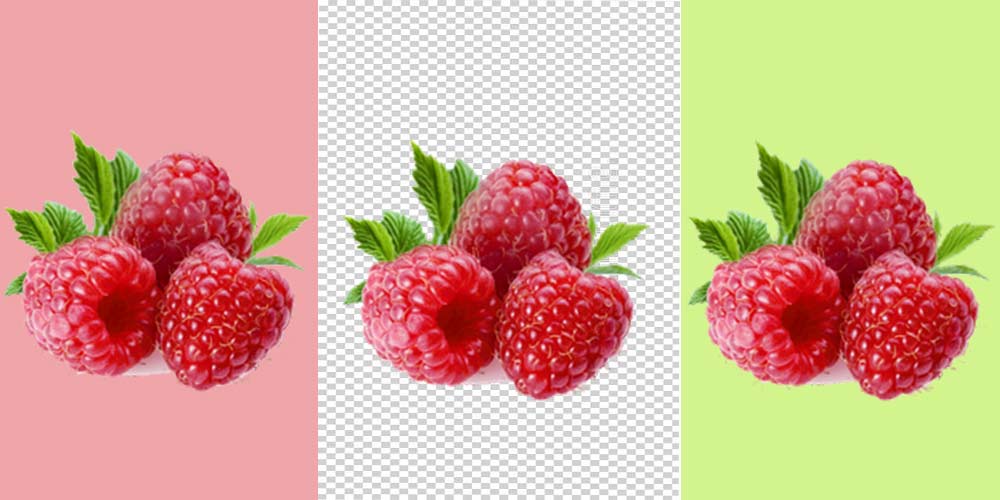
- Begin by locating the image on your computer that you wish to use.
- Drag and drop your image into your open Photoshop project once it’s been selected.
- Your picture will be put on your canvas and added to the Layers panel as a new layer. You may now scale or move the picture to meet your requirements. There’s no need to make everything perfect right now because you can make these modifications later with the Move Tool.
- Press the Enter key on your keyboard or click the checkmark in the upper settings bar when you’re satisfied. Your image will now be put on its layer a top your existing image.
- You can now choose whether to combine the layers or leave them separate. You may freely modify each picture separately by keeping them separate. If you wish to change them both at the same time, you may combine them into one layer.
- Press Command + E (Mac) or Control + E (PC) while holding the Shift Key and clicking between the two levels you wish to merge. Your pictures will now be merged into a single layer and manipulated as a single image.
Alternative method: Copy and paste:
You also have the option of just copying and pasting. This method works best with photos that have previously been opened in Photoshop but are in the middle of two distinct projects.

- Go to Edit > Copy or press Command / Control + C (Mac/PC) with the picture you wish to copy selected.
- Go to Edit > Paste or use Command / Control + V (Mac/PC) to switch documents to your other project.
- Your copied picture will be placed as a new layer for your other project. You may use the Move Tool (V) to scale and relocate it to a more suitable spot.
- You may now select whether to keep the photos separate or combine them into a single image. Most of the time, it’s preferable to have them on different layers so you can modify them afterward.
- If you insist on combining your layers, you may do it by pressing Command + E (Mac) or Control + E (Windows) (PC).
While all of these approaches are effective for adding a new image to existing layers, non-destructive options such as groups and linked layers are available.
Rather than permanently merging two pictures onto one layer, groups allow you to group them and save them in a separate folder. Similarly, links allow you to move and resize pictures in sync, making it simple to make changes to them all at once.
How to make a cool background in photoshop?
A muslin background is used by many professional portrait photographers. Purchasing a digital file is a less expensive option, but the quality may be an issue.
Making your digital background in Photoshop is the simplest and most effective approach. Here we go with the Photoshop lesson on how to build a nice background by Background Replacement.
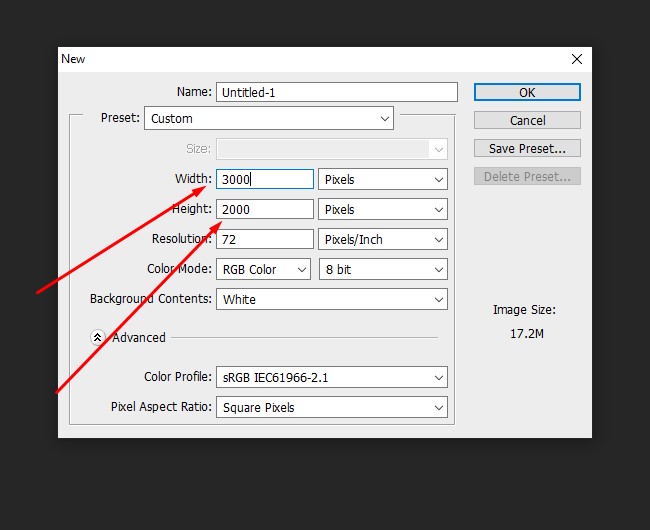
Step 1: Create a New Document:
- Select ‘New…’ from the file menu. There will be a new window open.
- Make a file with a name and dimensions of 3000 pixels high by 2000 pixels wide. If you prefer landscape orientation, change it.
Step 2: Background that is duplicated:
- Duplicate the background layer with the shortcut Cmd + J (Ctrl + J for Windows).
Step 3: Choose a color for the foreground:
- In the toolbar, click on the foreground color square.
- The color is generally black, however, depending on the last settings, it can be any color.
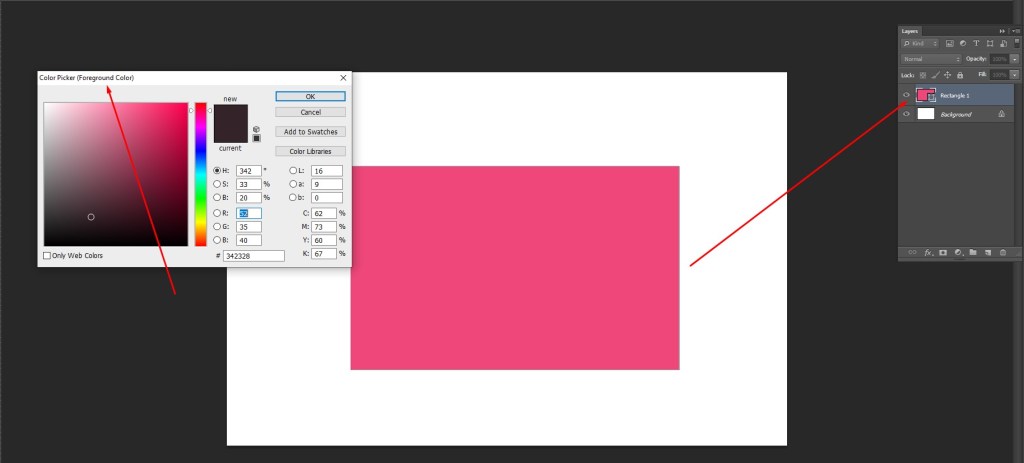
- The Color Picker window will appear on the screen. Select a medium-dark blue for this example and click OK.
Step 4: Choose a color for the background.
- Select the backdrop color square by clicking on it (usually the white one).
- Now choose a deeper tone of the color you chose previously.
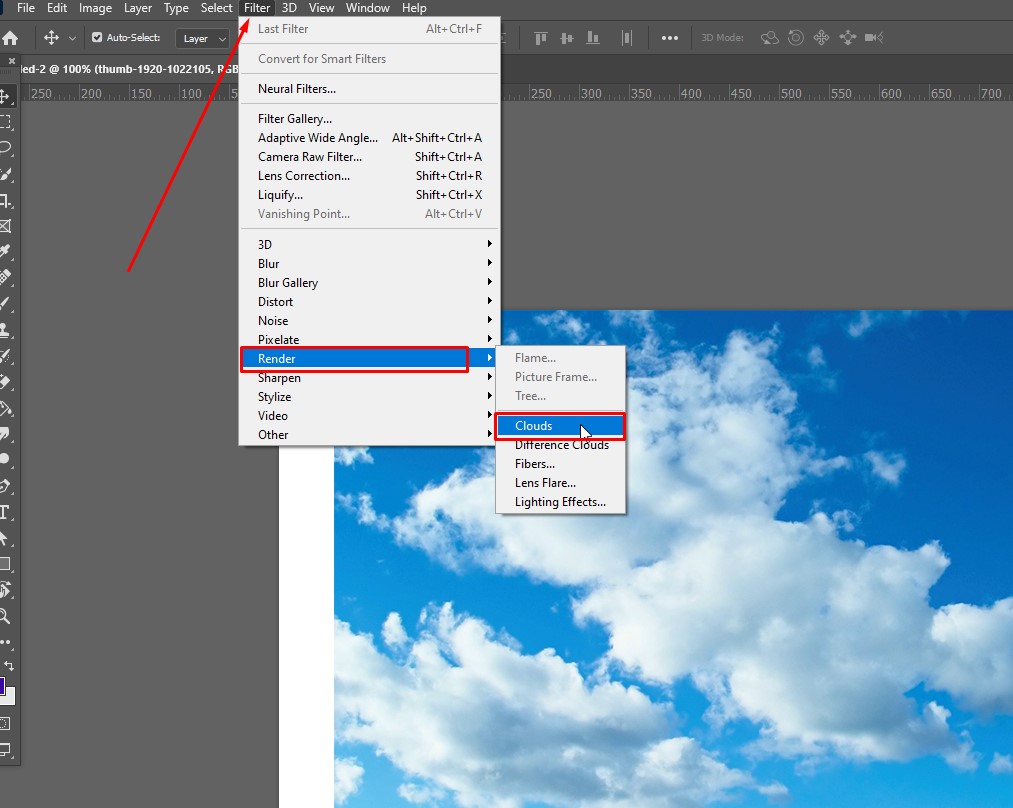
Step 5: Add Clouds:
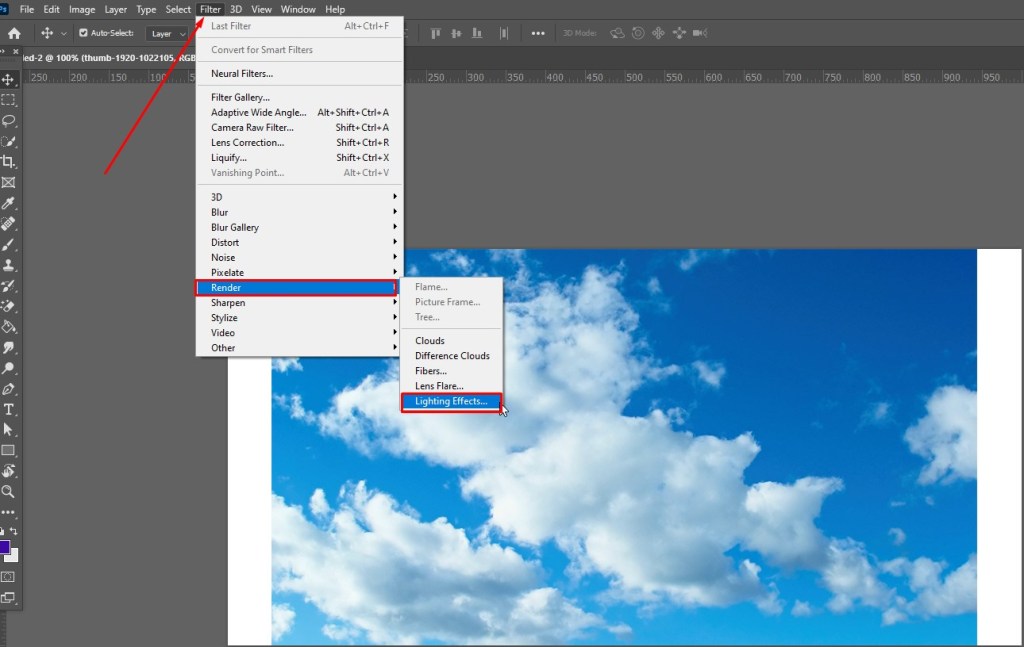
- Select ‘Clouds’ from Filter > Render. A textured backdrop will appear right away.
- It already looks fantastic, but we still need to put the final touches.
Step 6: Fill the background with light
Portrait photographers frequently use a light on the backdrop to draw attention to the person.
- It gives the impression of being more personal. Here’s an example of a studio photo like this.
- Select ‘Lighting Effects…’ from Filter > Render.
- Select the sort of light you wish to use in the Lighting Effects window. Select ‘Point’ from the drop-down option.
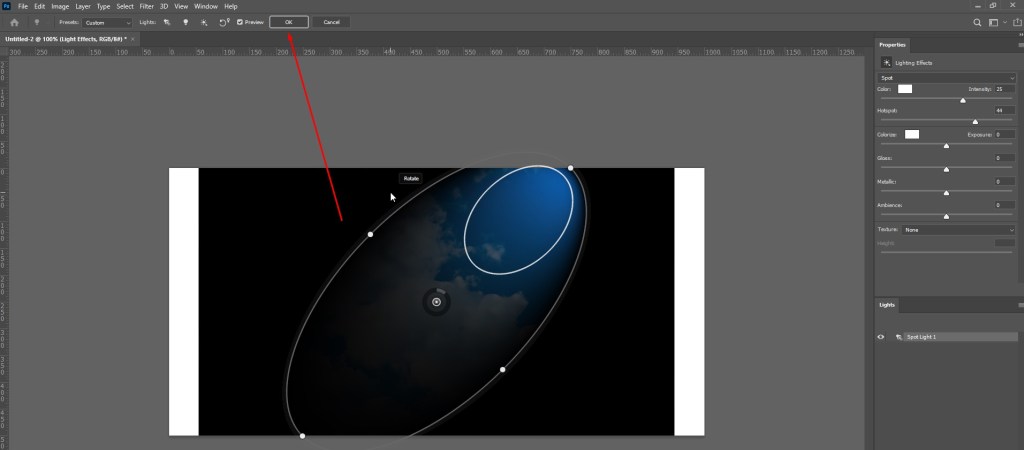
- Adjust the light’s location and intensity now. Drag the white center circle to any desired place.
- To expand the illuminated area, click and drag the green ring outwards.
- To make the light brighter, click and drag the opaque ring clockwise.
- When you’re finished, click ‘OK.’
Step 7: Change the background color of the digital image:
- You can start anew if you want to alter the backdrop color, but you don’t have to.
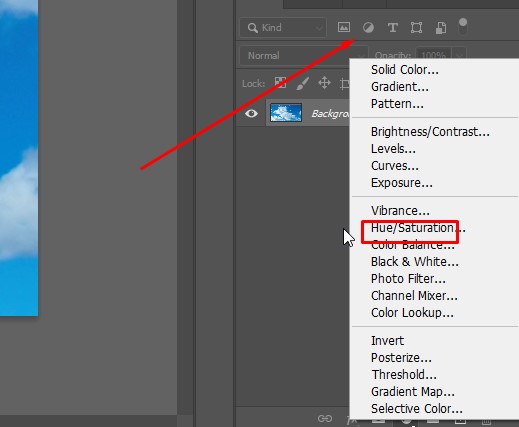
- An adjustment layer can be used to modify the backdrop color.
- Create a new fill or adjustment layer by clicking the ‘Create new fill or adjustment layer icon.
- From the dropdown menu, choose ‘Hue/Saturation.’
- To alter the color of the digital background, drag the Hue slider to the left or right.
- Change the saturation and brightness using the other sliders.
Conclusion
So far, we’ve discussed a couple of approaches to how to insert image in Photoshop on top of the background? It’s difficult to find a decent photo editor! However, there are so many that you can very much pick and choose whatever one works best for you.
Of course, this requires some trial and error, but if you’re looking for a suggestion? Adobe Photoshop is the most helpful editing tool of all since it allows you to quickly and easily change the background of your photos.
 Welcome to Graphicsvaly