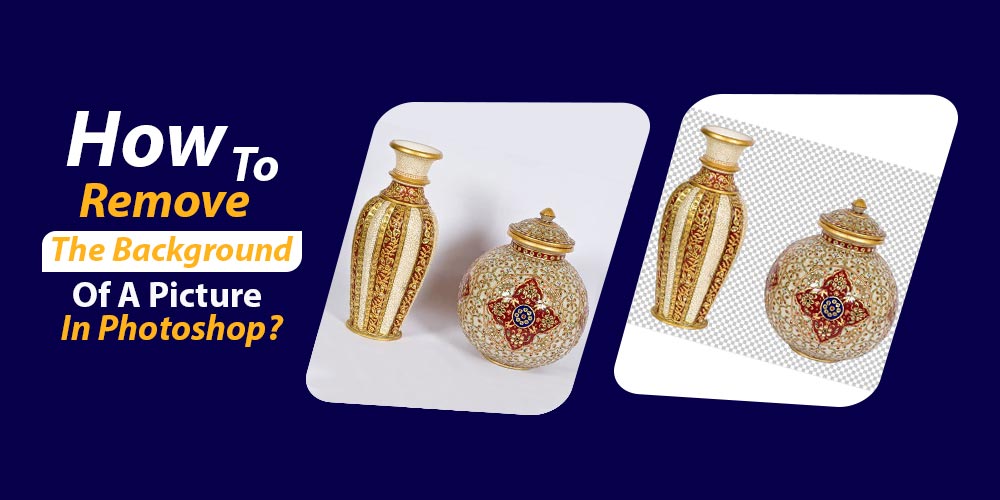
Removing the background using photoshop has become quite common nowadays. Most people want to remove the background either to give their pictures a professional look for professional uses or a lousy background of a good shot. And removing the background isn’t a challenging task. You can remove it using Photoshop.
After reading this article, you can confidently answer how to remove the background of a picture in photoshop?
How to remove a background in photoshop?
If you are a new photoshop user and want to know how to remove background in photoshop, act upon the following steps, and you will understand it better.

Some The plugin for photoshop are the fastest way to remove the background of any image. Just one click, and your job is done. The removal of the background using the plugin is even faster than the built-in tools of photoshop. Just download the plugin, log in to your account and start removing backgrounds in photoshop.
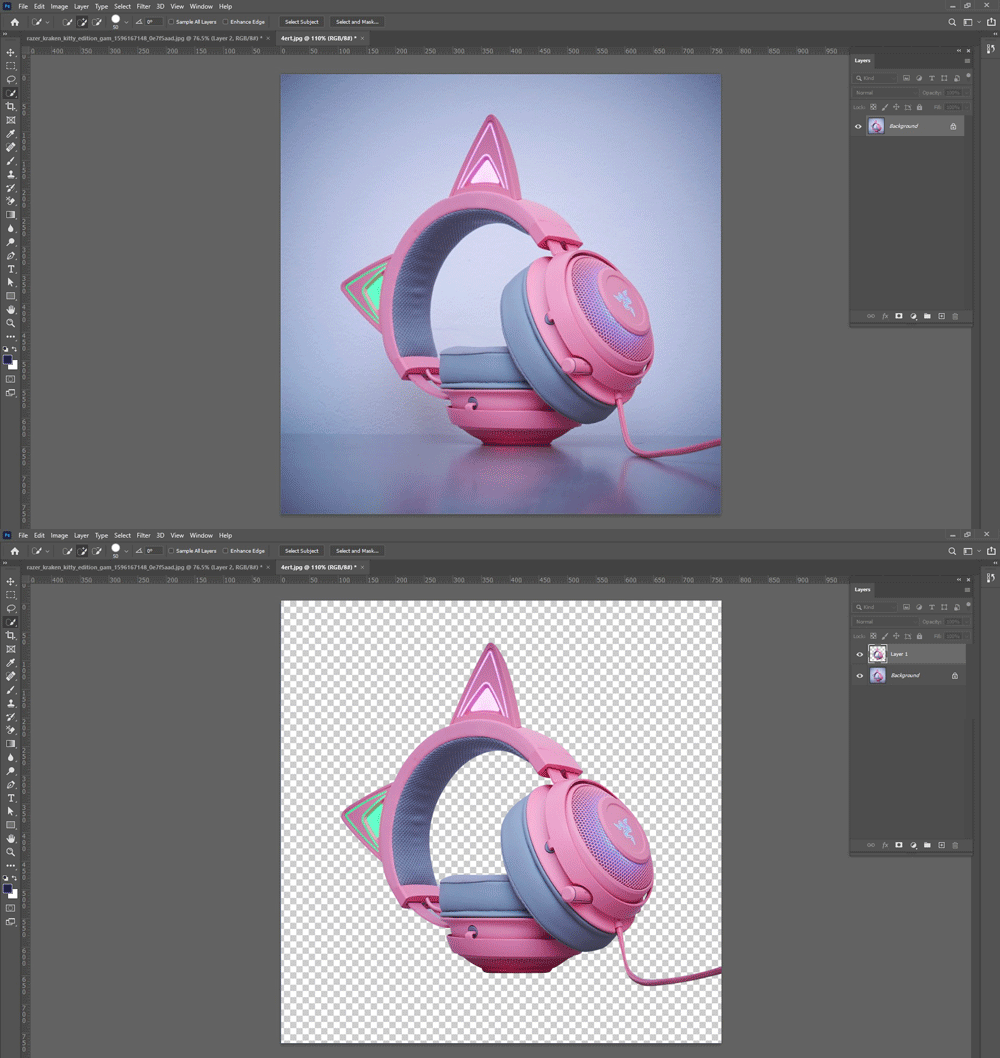
How to get rid of the background of a picture in photoshop:
If you are a beginner and need to get rid of the background of your picture using photoshop, act upon the following steps in chronological order.
- Open the photoshop app on your PC and import the picture you want to remove the background. You can import the picture by clicking on the file and then opening it from the top left menu.
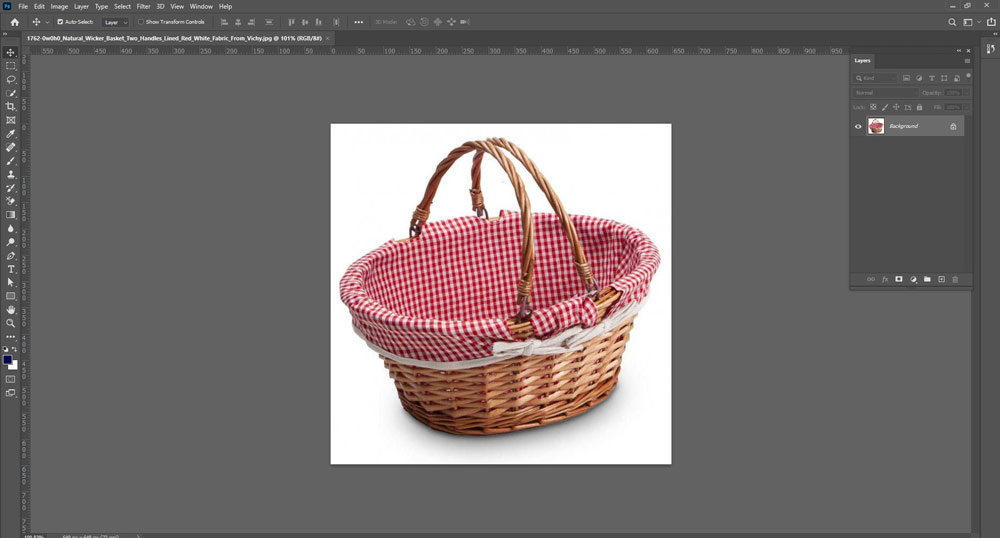
- Then choose the quick selection tool. Click on the object selection tool and find a solid rectangle tool with a dotted line on the left side toolbar. It is not the only way to do so, but this is the easiest way to isolate the subject.
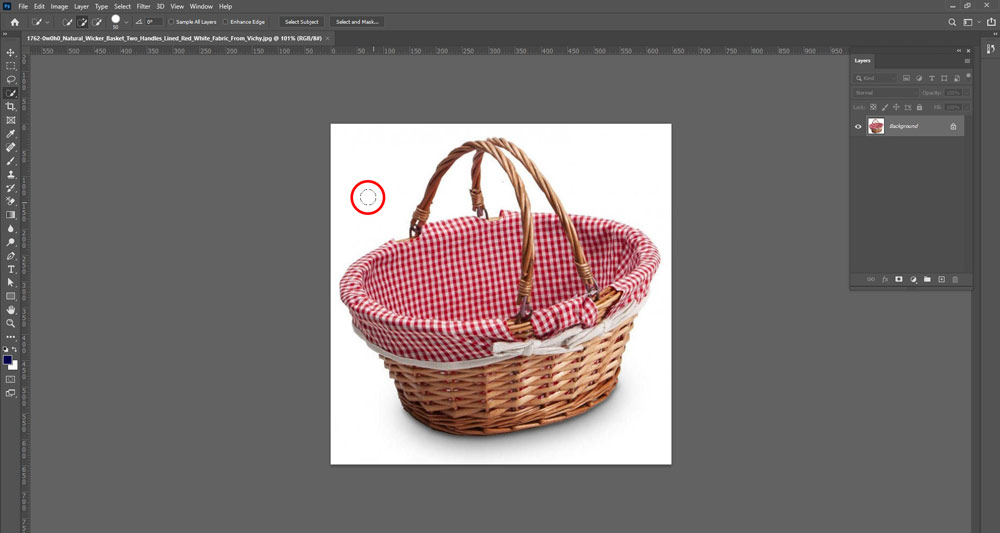
- Then there are two ways to select the object you want to keep even when the background has been removed. One way is to use the select subject tool from the upper options menu. It works effectively, but the other option is to click piece by piece and keep doing it until you had selected the image you want to keep after the background removal.
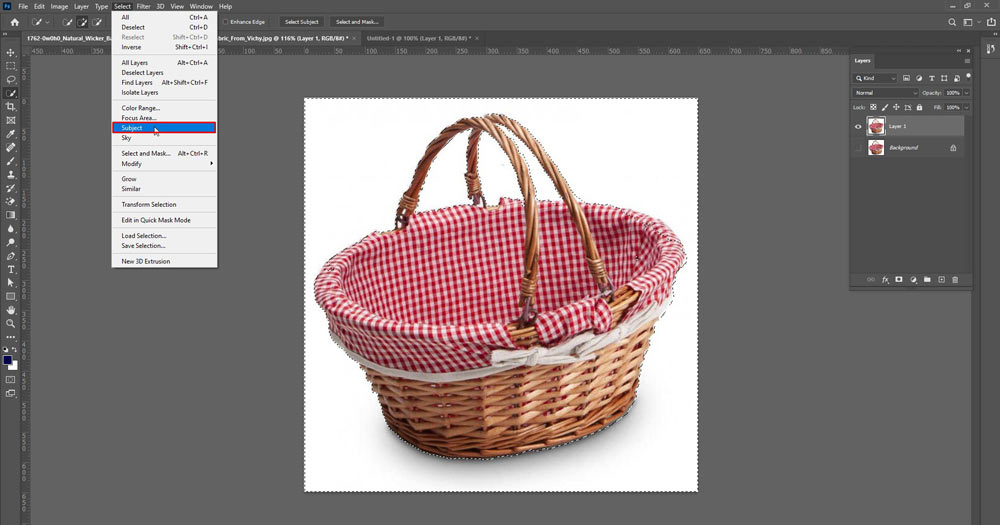
- To fix the imperfections around your subject, you can zoom in on the picture or use the quick mask mode. The fast mask mode will remove the blemishes from your subject quite effectively.
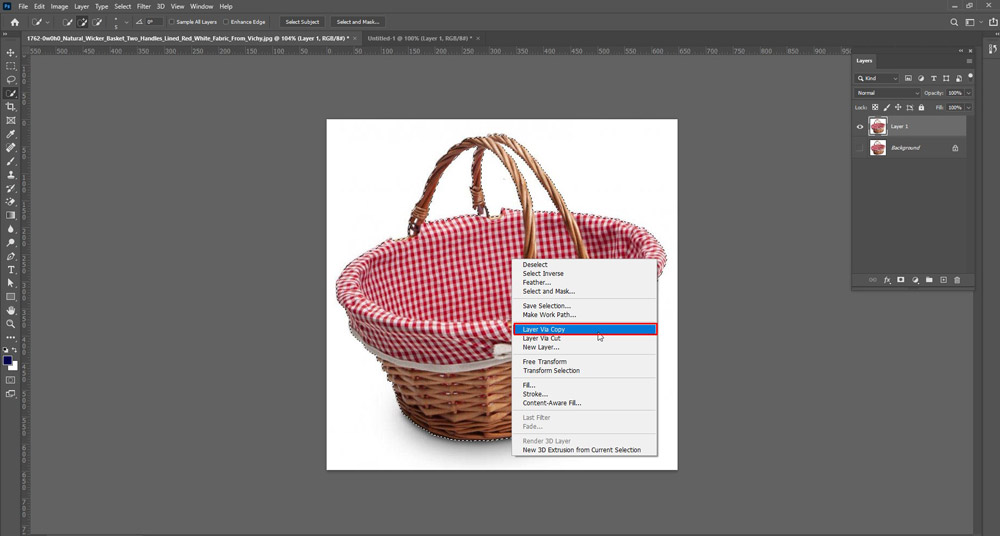
- When you’re satisfied with the subject you want to keep after the background removal, right-click your outlined subject and from the menu, select the layer via copy by right-clicking.
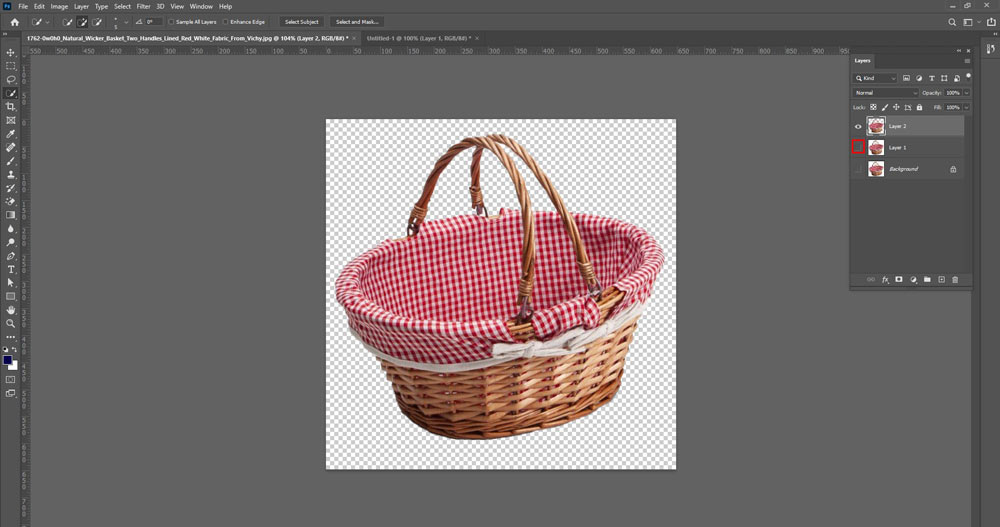
- Then from the layers panel, select the eyeball icon present next to Layer 0. It will disappear the background from your image.
Erase background photoshop || Photoshop background eraser tool:
If you are still confused about how to remove the background of a picture in photoshop? There’s another option through which you can remove the background of your picture quite easily. You can do so by using the background eraser tool from photoshop. Moreover, the background eraser tool works best with high contrast images, but it takes some extra time and effort for a good result.
Here are the following steps in chronological order to use the eraser tool in photoshop to remove the background.
Open the photoshop app on your PC and import the picture you want to remove the background. You can import the picture by clicking on the file and then opening it from the top left menu. Then right-click on the background layer and click on the duplicate layer. You can rename it whatever you want. After renaming it, click ok.
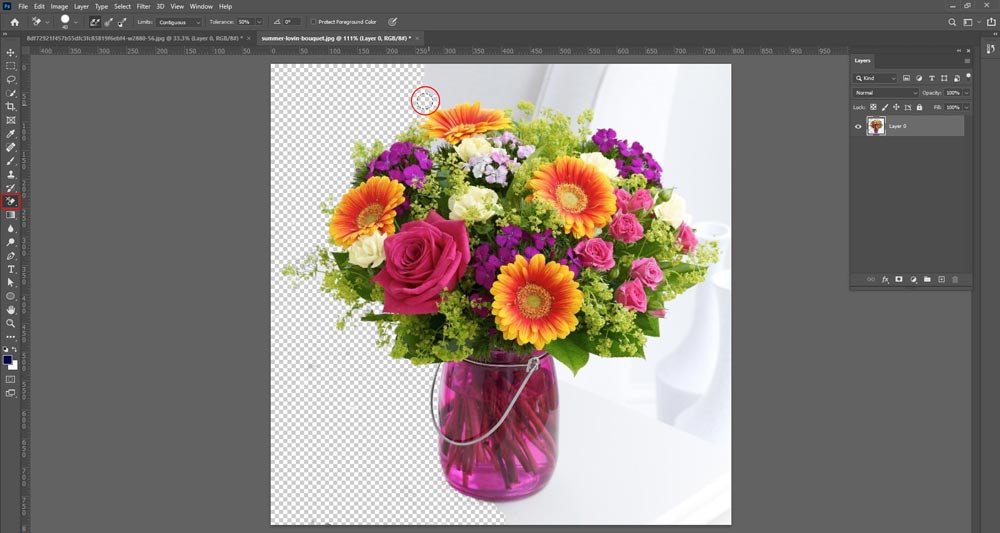
Turn off the original layer by clicking the eye icon from the left side of the original layer. From the left side toolbox, select the background eraser tool. You may find this tool hidden below the eraser tool. Reveal the brush panel by clicking on the brush icon from the tool options bar from the top of the screen.
Then from the tool options, set the sampling to be continuous. After setting the sampling, set the limits. The limits will help you find the edges. The tolerance must be between 20 to 25 percent. The selection of colors from the tool varies with the tolerance. The higher the tolerance, the more color variations the tool will pick and vice versa.
After all these settings, start erasing the background around your subject by using the background eraser tool. Make sure that the eraser doesn’t touch the subject. For this purpose, you can zoom in to see more details and avoid the eraser touching the subject.
How to use the quick selection tool to remove background?
The quick selection tool uses artificial intelligence to decide the edges of your subject. It works best when there is a clear difference between your background and the subject. But if both the background and the subject of your picture resemble, the tool will get confused, and then you need to spend hours to separate the subject from the background.
Follow the following steps to use the quick selection tool to remove the background.
- Open the image in photoshop of which you want to remove the background.
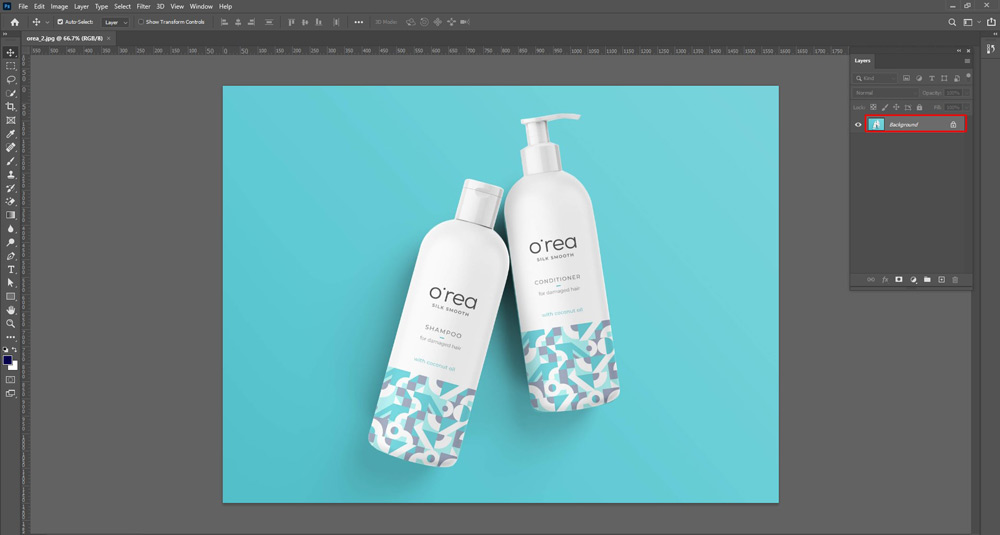
- Unlock the layer and rename it.

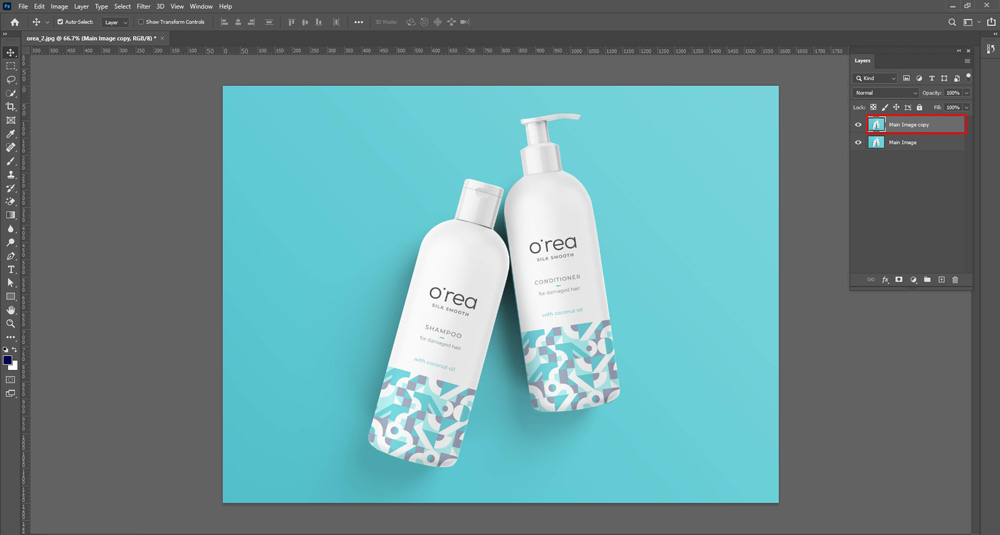
- Duplicate your photo layer and save it.
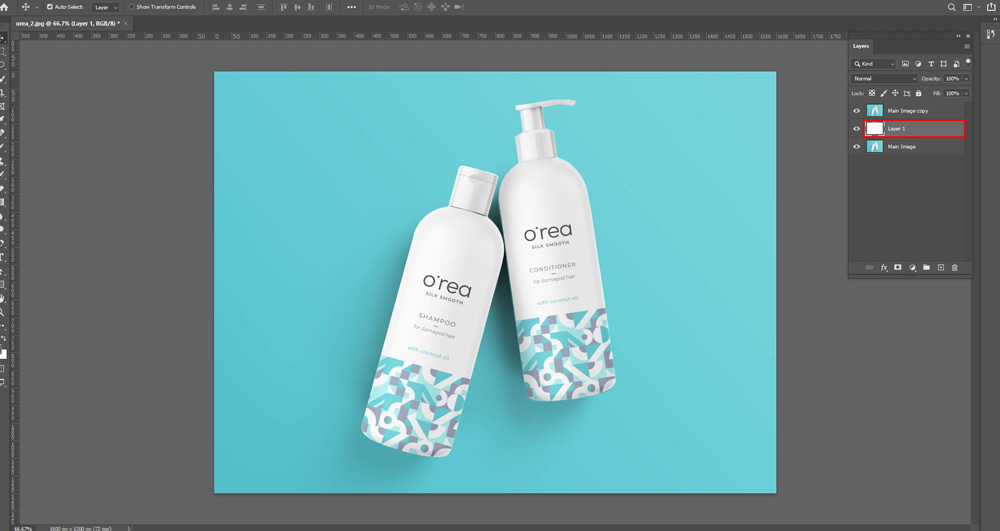
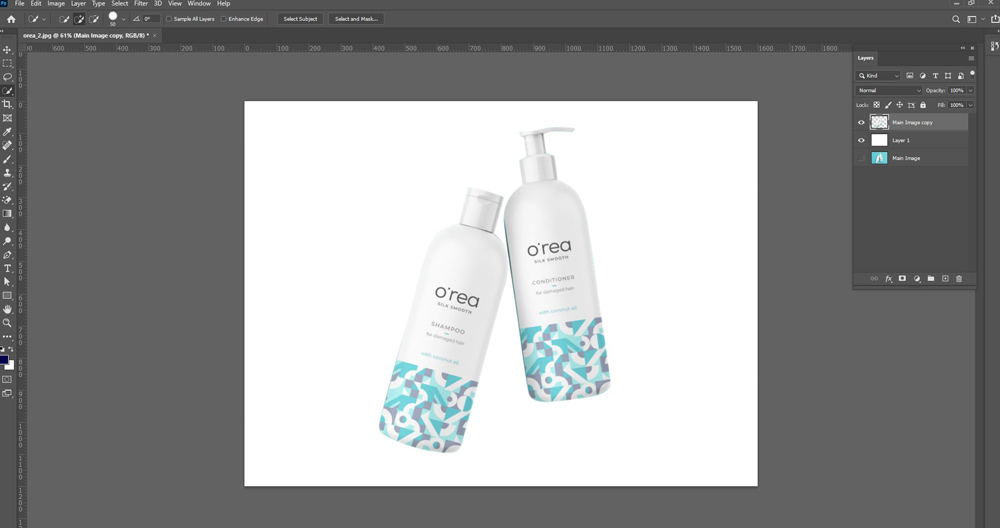
- Create a background layer.
- Please choose the subject you want to separate from the background.
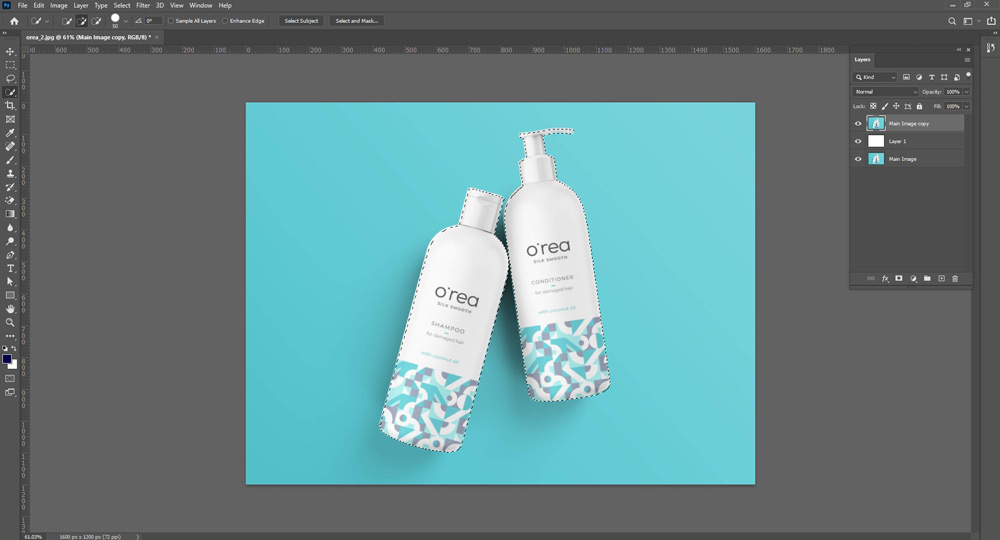
- Refine the edges of your selected object.
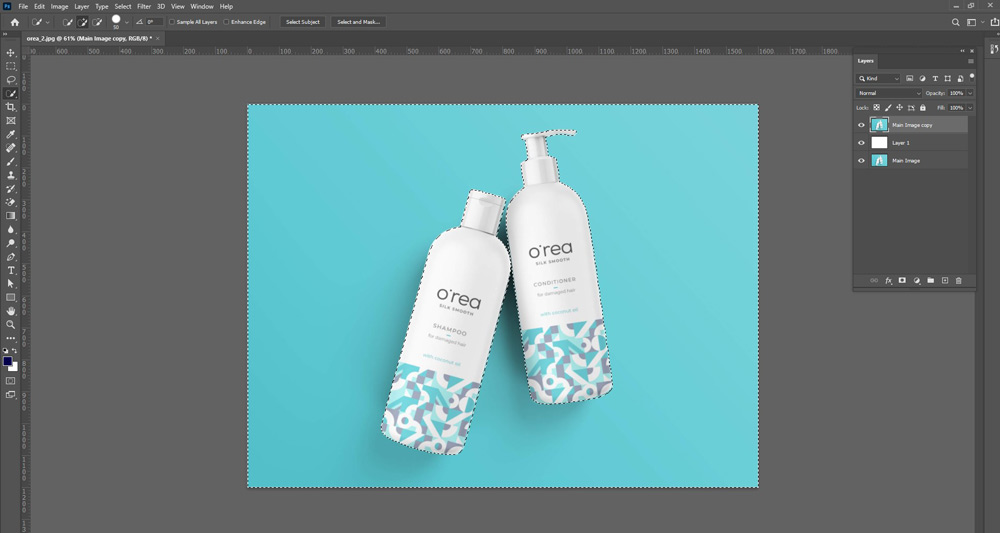
- Then delete the background.
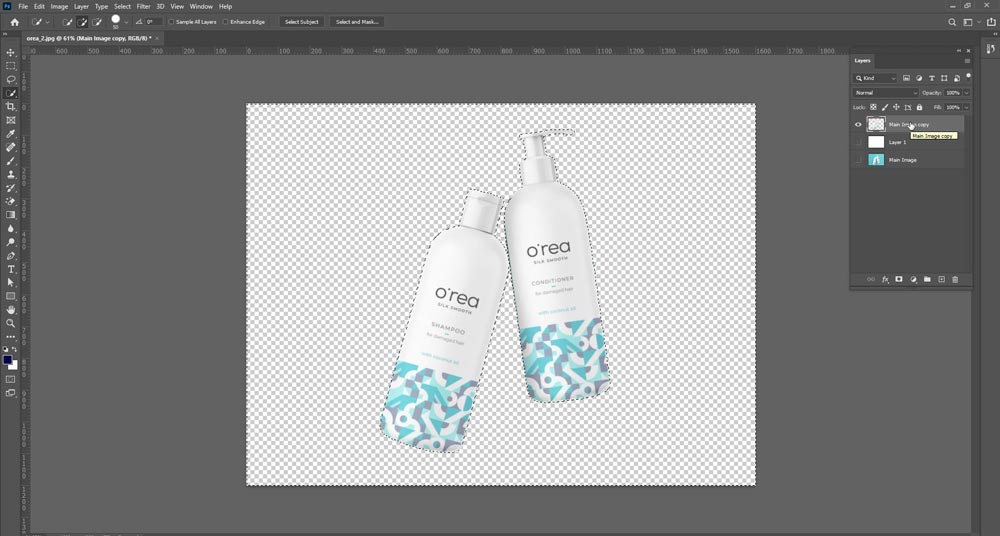
- Add touch-ups to the image, and your background is gone.
How to remove background in Photoshop using a magic wand?
Magic wand tool is also an excellent tool to remove the background in photoshop. You can follow some easy steps to remove the background using the magic wand.
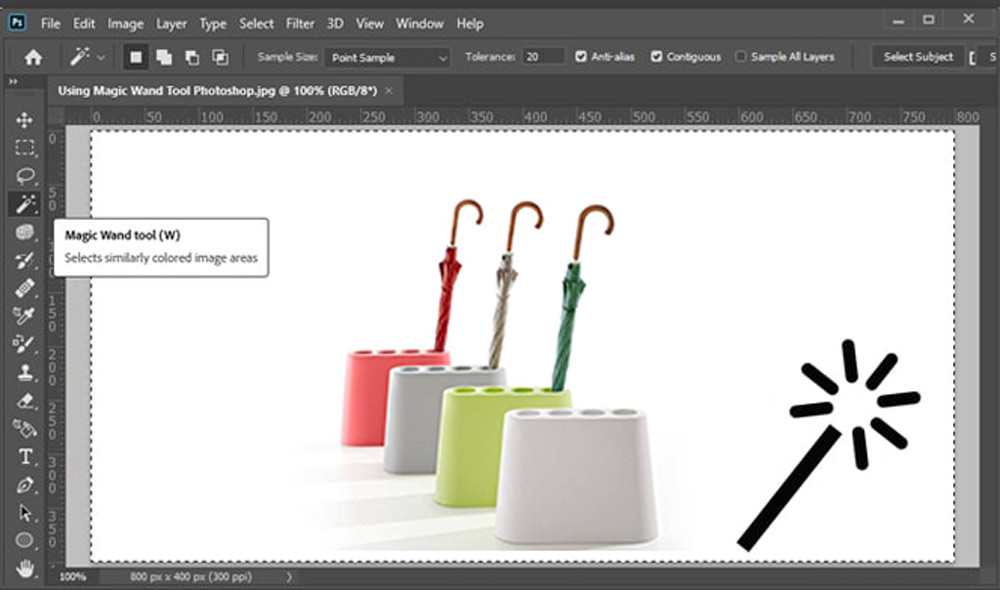
First, start Photoshop and open the image to remove the background. Then select the layer and then select the magic wand tool from the toolbar. Adjust the selection settings of the layers, set the tolerance, etc., and make the initial background selection. After selecting the background, refine your subject and finalize the selection. Then remove the background and save the image after deselecting the layers.
How to remove the white background from a picture in photoshop?
If you need to remove white background from a picture in photoshop, start the photoshop app and open the image to remove the background. Then select the layer and from the top menu, choose the select command and select the subject. After the selection of the subject, click on the mask layer icon and apply it. And your white background is gone. You can now add a background of your own choice.

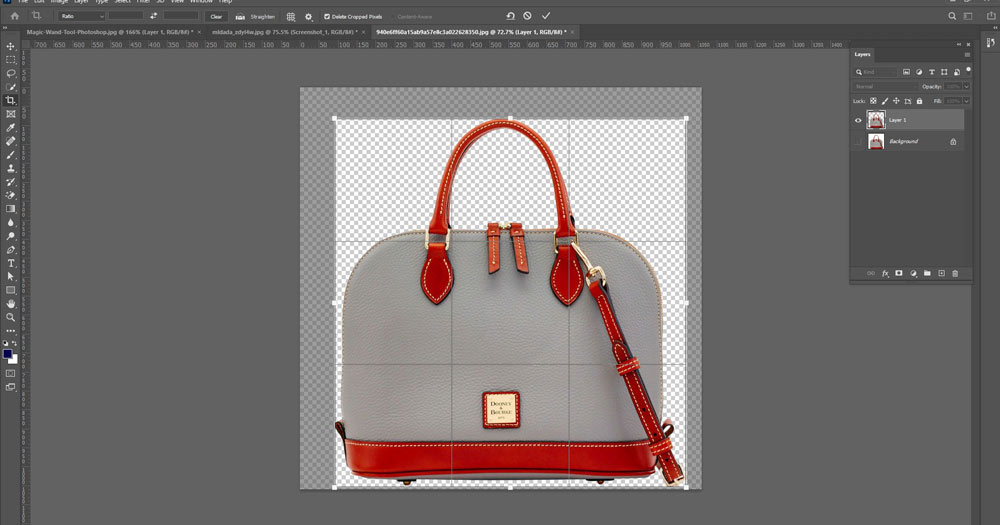
How to crop images in photoshop without background?
If you want to crop an image in photoshop without the background, start the photoshop app and open the image to remove the background. Then select the layer and separate the background from the subject. Now select the crop tool from the toolbar and crop your subject. After cropping, paste the background layer again and save your image.
Conclusion:
After reading the article, you can practice it yourself and confidently teach anyone how to remove the background of a picture in photoshop.
 Welcome to Graphicsvaly